

Quickstart: Claude Code on your airdress
From a machine that has never run any of it to a Claude Code session answering your phone, in five steps. You need an airdress, the Airdress Chat app on a phone that is signed in to it, and Claude Code on Linux or macOS.
-
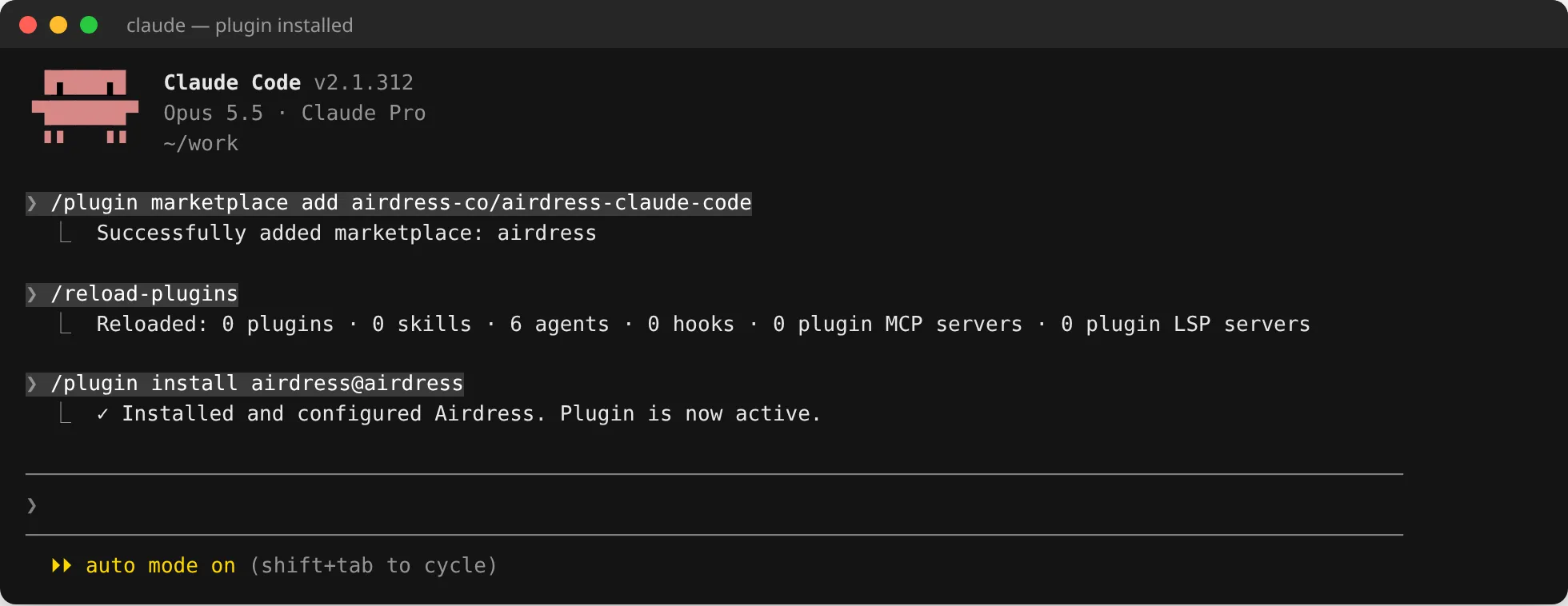
Install the plugin. In Claude Code:
/plugin marketplace add airdress-co/airdress-claude-code/plugin install airdress@airdressChoose Install for you and save the options as they come; every setting can be changed later (settings). Before the plugin’s server runs, its launcher checks the download’s signature and digest against the plugin’s own commit (how).
-
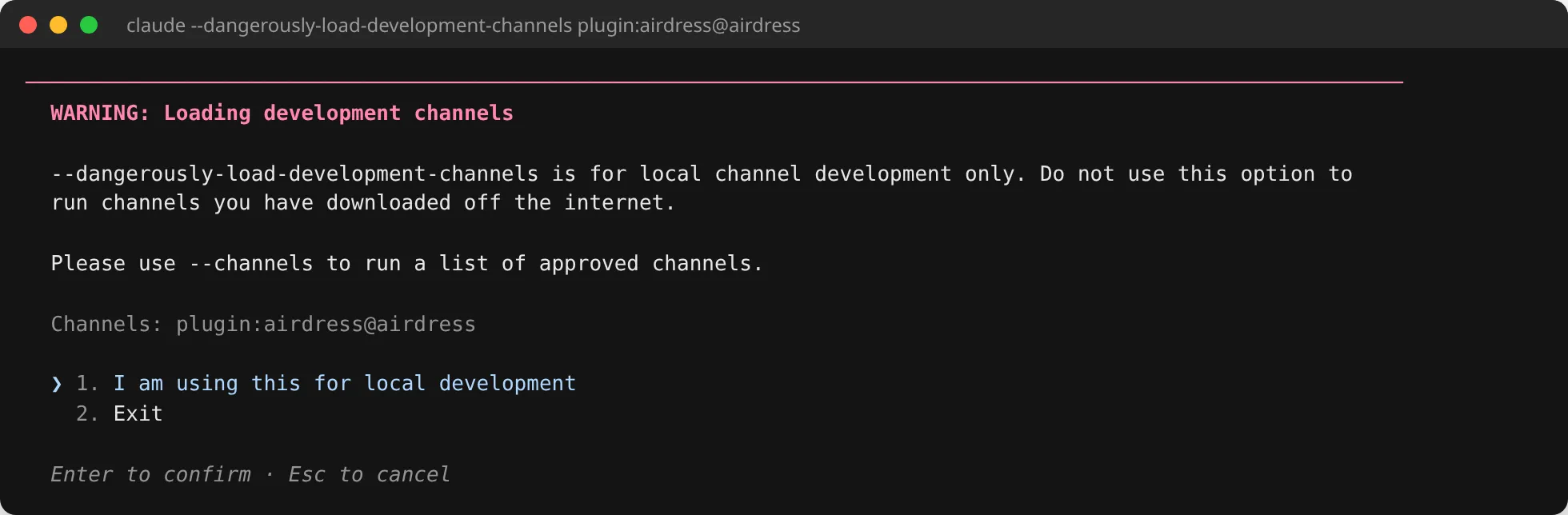
Start Claude Code with the Airdress channel. Messages from your phone reach a session through a Claude Code channel. While channels are a research preview, a channel that is not on Anthropic’s list is loaded with a flag:
Terminal window claude --dangerously-load-development-channels plugin:airdress@airdressClaude Code asks you to confirm once per start: choose I am using this for local development.
Why the flag says “dangerously”
A channel puts messages into your session without you asking for them. Claude Code loads one without a warning only from plugins on Anthropic’s list, and Airdress is not on it yet. Every message says who sent it: the session treats a request from your own devices as a request, and anything from another person as information, which changes nothing until you confirm it at this machine (who can ask what).
Start it without typing the flag
An alias saves the typing; Claude Code still asks you to confirm at each start.
Terminal window alias claude-airdress='claude --dangerously-load-development-channels plugin:airdress@airdress'On a Team or Enterprise plan
An admin can allow the plugin in the organisation’s managed settings (
channelsEnabledandallowedChannelPlugins). You then start withclaude --channels plugin:airdress@airdress, and no warning appears. -
Sign in.
/airdress:loginYour browser opens; approve the sign-in there. On a machine without a browser,
/airdress:login deviceshows a link and a code to approve from any other device. -
Make this machine an agent device. Ask the session in plain words:
Make this machine an agent device.It installs the
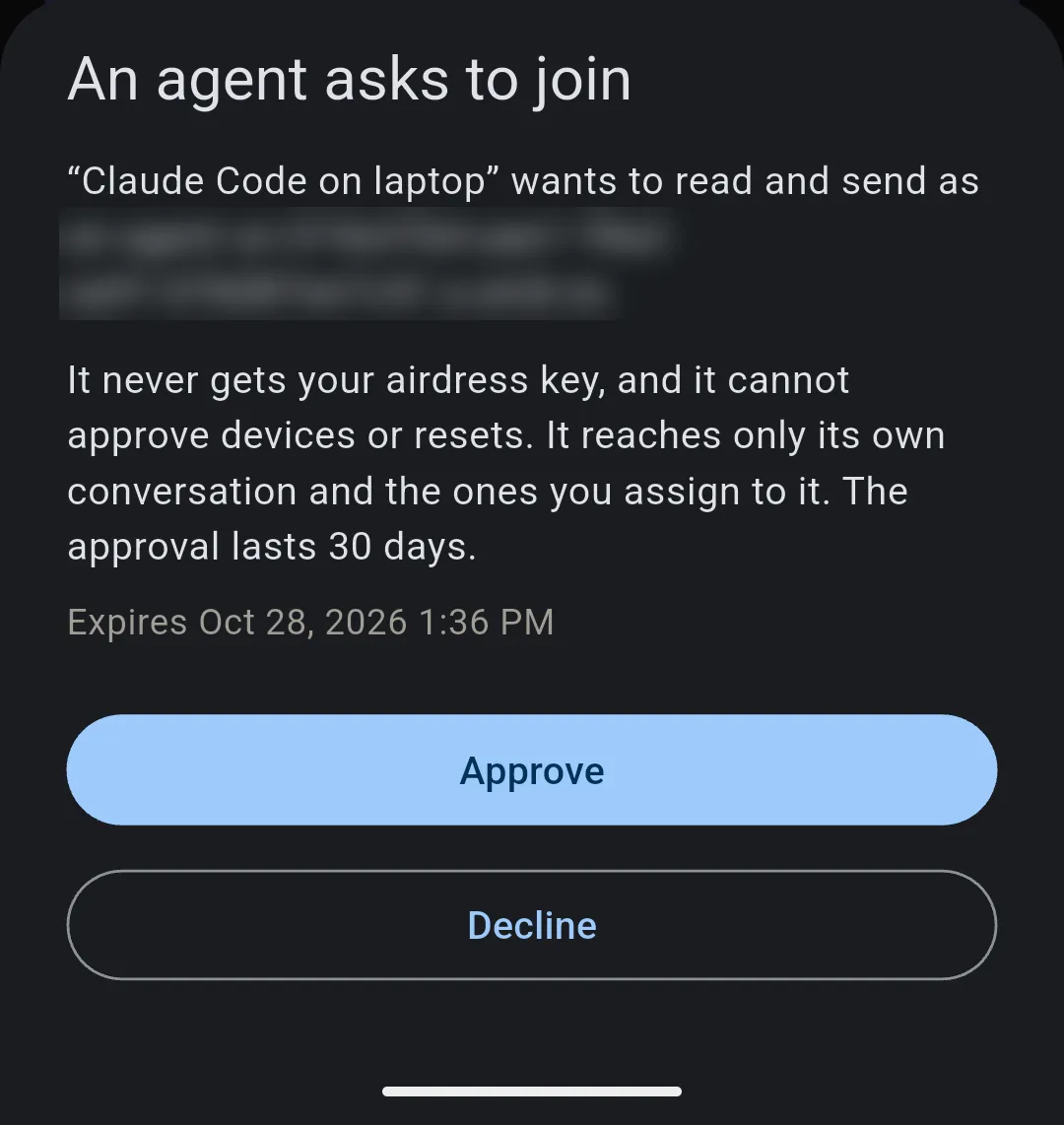
airdress-agentthis plugin release pins (checked against its SHA-256, into the plugin’s own data directory) and asks your airdress to admit the machine. Your phone shows “Claude Code on your-machine wants to join”. Tap Review, then Approve. The session starts the device host by itself; nothing needs restarting.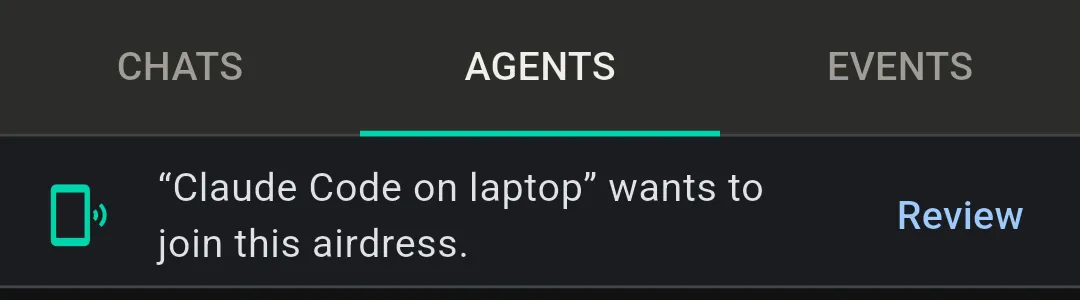
-
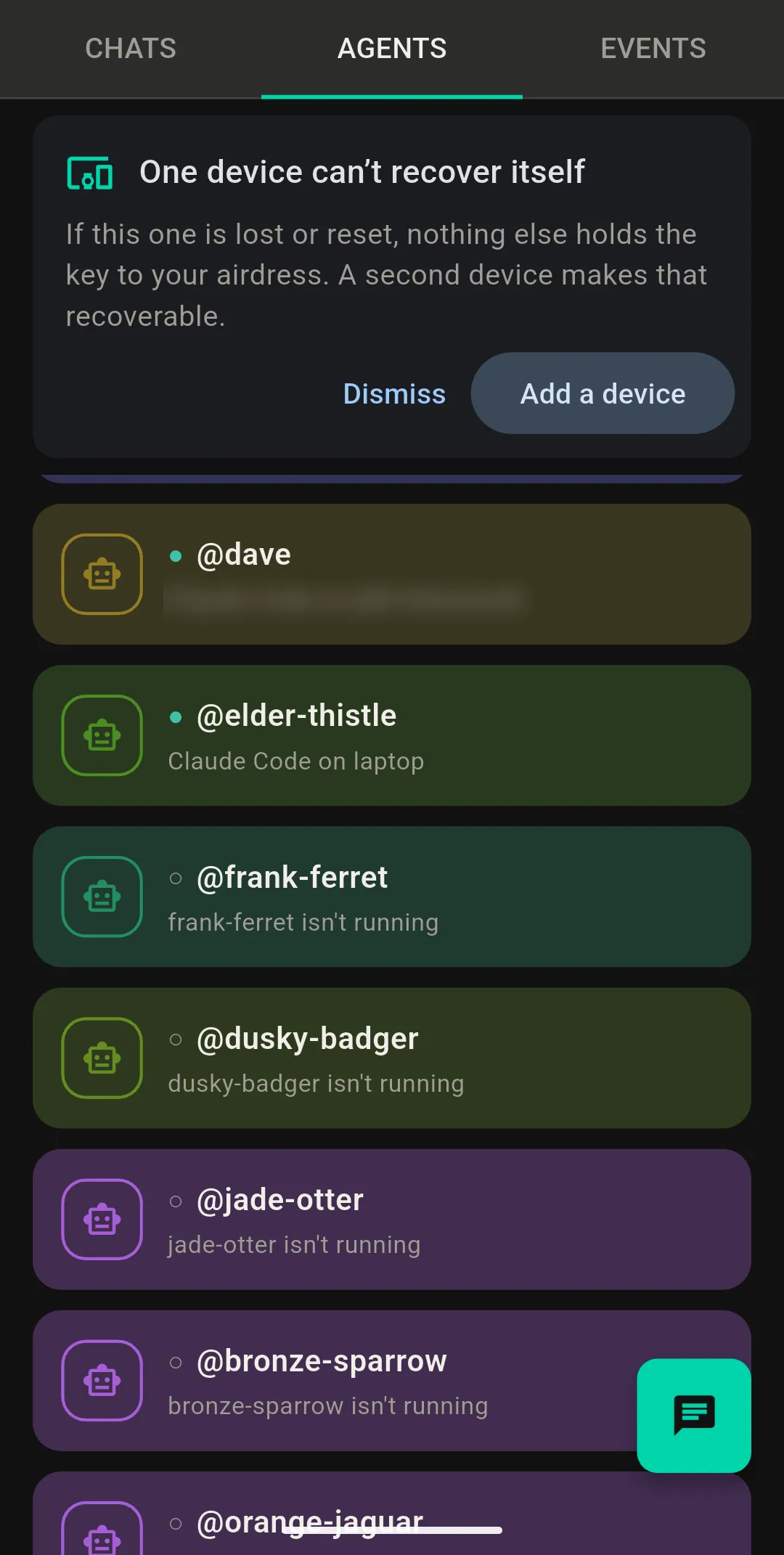
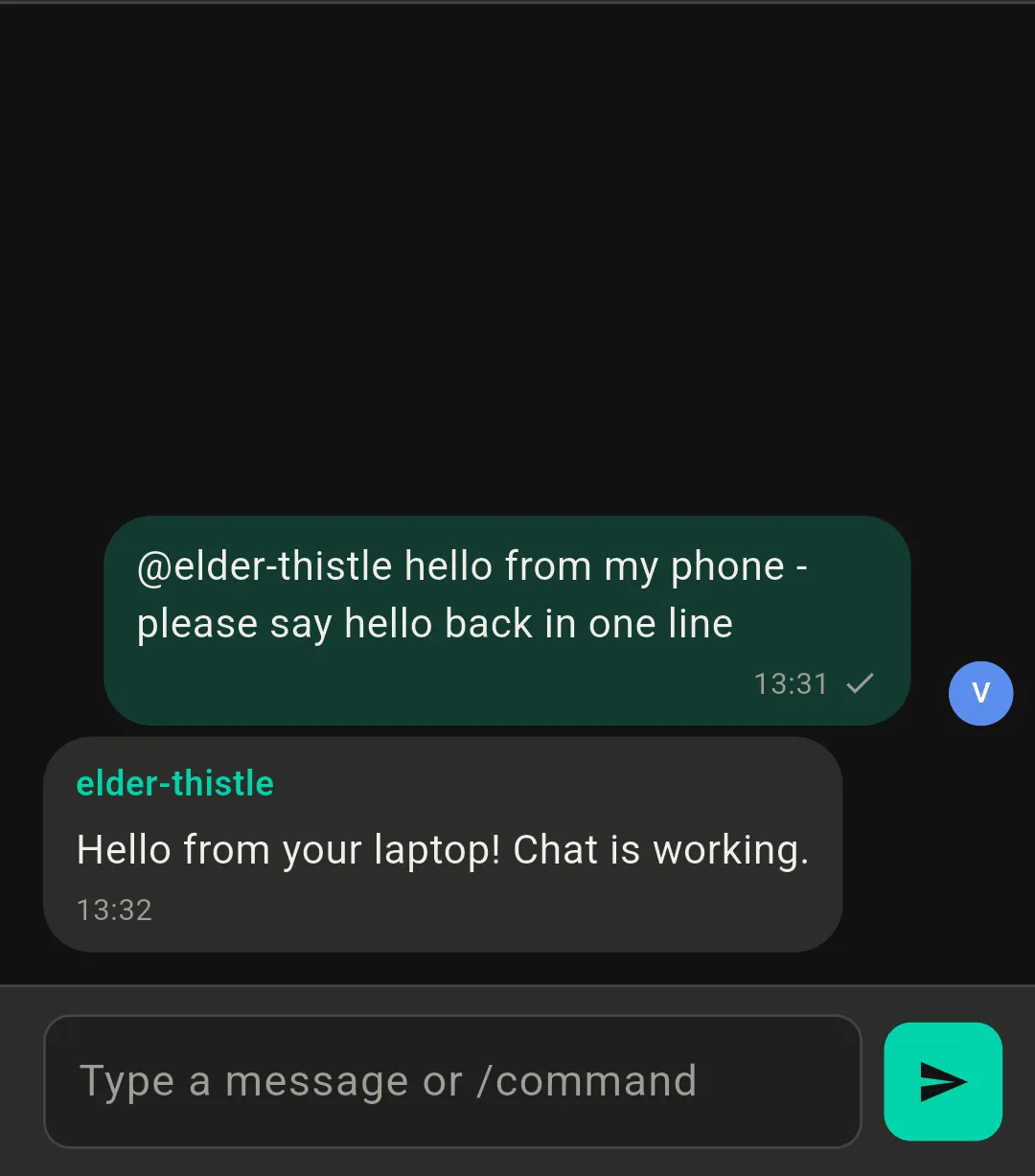
Message the session from your phone. In Airdress Chat, open Agents. Under Sessions your session is listed by its name, with a green dot while it runs. Open it and write:
@quiet-otter what are you working on?The answer arrives a few seconds later under the session’s name.
Choose the session’s name
Section titled “Choose the session’s name”A session gets a random name, such as quiet-otter, unless you give it one.
Set Session name in the plugin’s settings, or for one launch:
AIRDRESS_SESSION_NAME=build claude --dangerously-load-development-channels plugin:airdress@airdressIf two sessions on your airdress want the same name, the second is told and takes a free one. Names in detail.
Allow the channel for your organisation
Section titled “Allow the channel for your organisation”On a Team or Enterprise plan, channels are off until an owner turns them on (Claude Code: Organization settings, Channels). An admin can then allow the Airdress plugin through managed settings, so nobody needs the development flag:
{ "channelsEnabled": true, "allowedChannelPlugins": [ { "marketplace": "airdress", "plugin": "airdress" } ]}Setting allowedChannelPlugins replaces Anthropic’s list for your
organisation, so add every channel plugin you use. Claude Code’s own
documentation:
channels.
- From your phone: conversations, names, and what happens when a session is not running.
- Working together: several sessions, one task.
- Who can ask what: the rules a session follows.